
CarPlay and Android Auto: What They Do for Drivers
Your Car's Screen, Powered by Your Phone
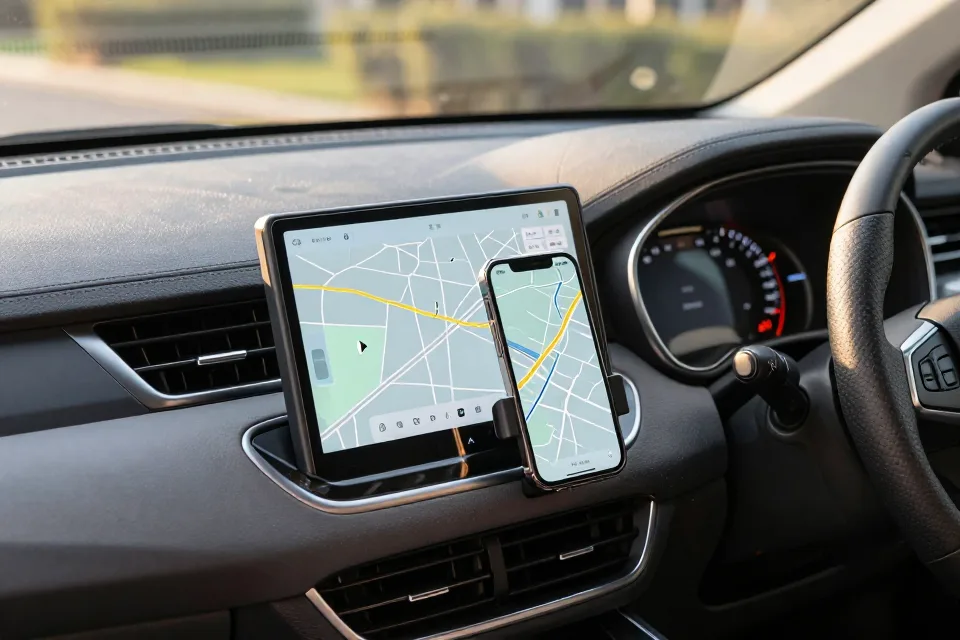
If you have shopped for a car in the past few years, you have seen the words CarPlay and Android Auto on window stickers, in commercials, and on dealer websites. What they actually do is rarely explained in plain English. They are not apps you buy, and they are not subscriptions. They are a way to put your phone's most useful features — navigation, calls, texts, music — on your car's dashboard screen, with buttons big enough to use at a glance.
Here is the good news for drivers who did not grow up with smartphones: this is one of the friendliest pieces of car technology you will ever meet. If you can plug in a phone charger and say a sentence out loud, you can use these systems. This guide covers what they do, why they exist, how to set them up, and the mistakes that trip up people who are new to them.
The Short Answer: What These Two Systems Actually Do
CarPlay is Apple's system, and it works with iPhones. Android Auto is Google's system, and it works with Android phones. Cars.com describes CarPlay as a way to bring a simplified version of your iPhone onto the car's screen, and Kelley Blue Book explains Android Auto the same way for Android phones: your apps appear on the dashboard, redrawn for driving.
The key idea is called phone projection. Your phone does all the computing — the maps, the calls, the music — and the car's screen is simply the display and the touch panel. The car does not need to know anything about your phone's apps. Plug in or connect wirelessly, and the system takes over the screen with a driving-friendly version of your phone.
Because your phone does the work, both systems improve through your phone's software updates rather than waiting for a new car. The setup you buy today can quietly do more a year from now.
Why They Were Built: The Distraction Problem
These systems exist to solve a real problem: drivers looking at their phones. The numbers are sobering. NHTSA reports that 3,208 people died in distraction-affected crashes in 2024. The FCC, citing NHTSA research, warns that reading or sending a text takes your eyes off the road for about five seconds — at 55 mph, that is roughly the length of a football field.
CarPlay and Android Auto attack that problem in three ways. They put the information on a screen you already glance at. They make the buttons and the text bigger. And they let you use your voice — Siri on the iPhone, the Google Assistant on Android — to make calls or change the map without touching anything.
Be honest about the limits, though. The AAA Foundation for Traffic Safety has studied hands-free voice systems and found that hands-free does not equal risk-free: voice commands and voice-to-text still create measurable mental distraction, even when both hands are on the wheel. These systems reduce fumbling with your phone. They do not make driving distraction-free.
What You Can Do With Them
The practical list is short and familiar:
-
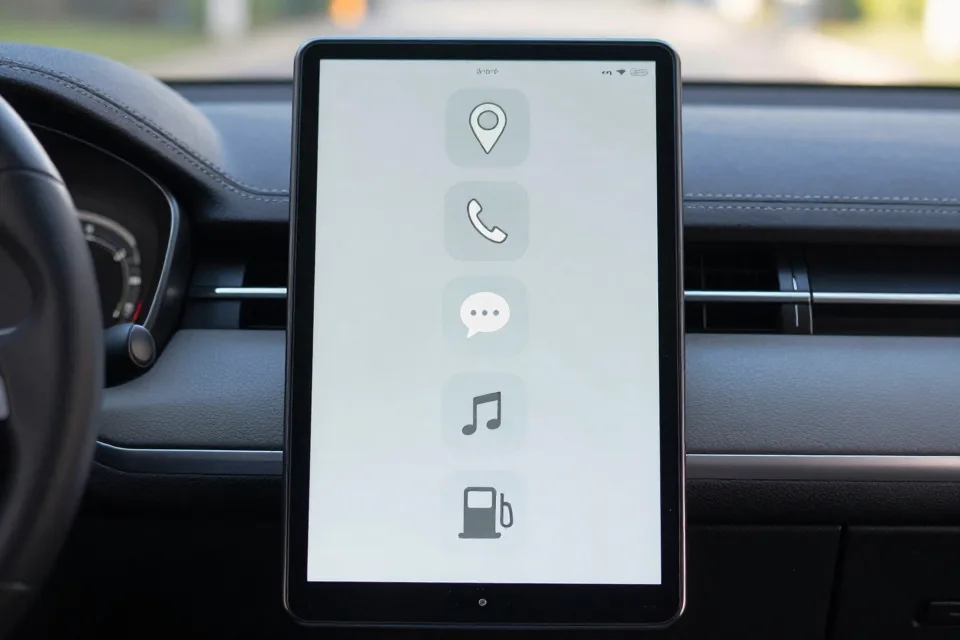
Navigation with live traffic. This is the headline feature. Android Auto brings Google Maps to the screen by default; CarPlay starts with Apple Maps, and you can add Google Maps or Waze as apps on either system.
-
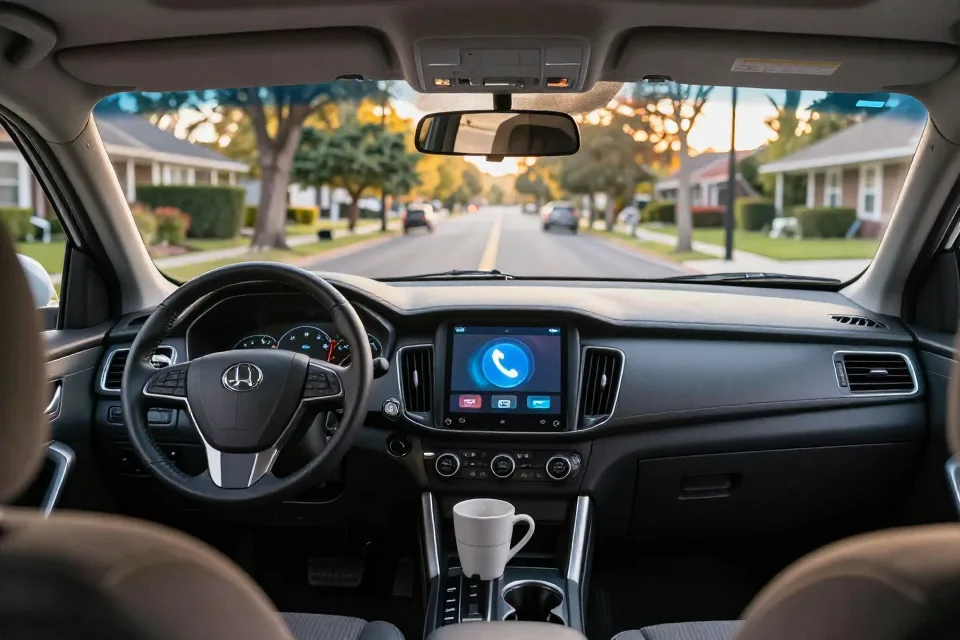
Hands-free calls. Your contact list appears on the screen, and you can dial by voice. Incoming calls show up on the dashboard instead of in your hand.
-
Text messages. New texts are read aloud, and you can reply by voice. Both systems keep this simple on purpose — long conversations are best saved for later.
-
Music, podcasts, and audiobooks. Apple Music, Spotify, Audible, and similar apps work on both systems, with album art and simple controls.
-
Other useful apps. Both systems have app stores for driving-friendly apps such as parking, gas prices, news, and weather. If an app is not designed for driving, it will not appear on the car screen — and that is a feature, not a bug.
CarPlay or Android Auto: Which One Is in Your Car?
You do not usually have to choose — your phone chooses for you. Many new cars offer both systems, and whichever one appears depends on which phone you carry. An iPhone connects to CarPlay. An Android phone connects to Android Auto. Cars that have both will show a different screen depending on which phone plugs in.
If your car did not come with either system, you are not stuck. Aftermarket car stereos — the radios a shop installs in the dash — commonly include CarPlay and Android Auto, a popular upgrade for used cars. A car audio shop can tell you what fits your vehicle.
Wired or Wireless: How the Connection Works
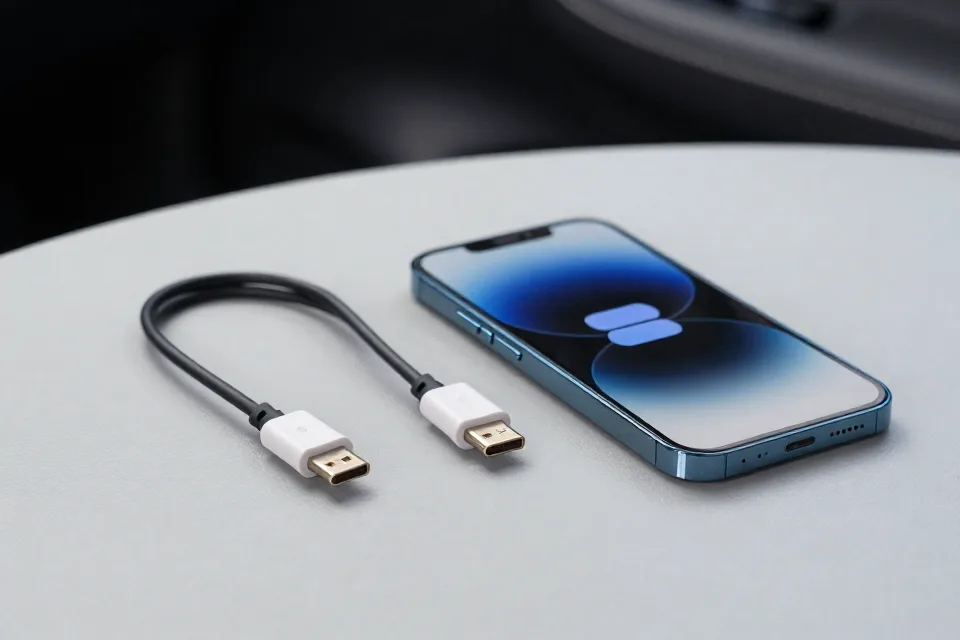
There are two ways to connect. The wired way uses a USB cable between the phone and the car. The wireless way, available in newer cars, links by Bluetooth and Wi-Fi and connects automatically once it is set up. Both approaches need a reasonably current phone: Google raised the Android Auto minimum to Android 9.0 or newer in mid-2024, and newer Android phones have the system built in, while Apple support describes similar CarPlay requirements for iPhone.
Three connection details cause most of the frustration:
-
Use a data USB port, not a charging-only port. Many cars have one of each, and only the data port carries the signal. The owner's manual shows which is which.
-
Use a quality cable. A cheap or worn cable is the most common reason the system drops out mid-drive.
-
Wireless is convenient but uses more battery. Keep a charging cable in the car for long trips.
Set It Up in Five Minutes
The first connection takes only a few minutes, and you should do it while parked:
-
Start the car and unlock your phone. For a wired connection, plug into the data USB port. For wireless, put the car and the phone into their pairing modes and follow the prompts on the car's screen.
-
Answer the permission prompts. The phone will ask to share contacts and notifications. Grant what you are comfortable with; you can change this later.
-
Try one voice command while parked, such as "Call home" or "Navigate to the grocery store," to confirm the microphone works.
-
Set your home and work addresses in your map app ahead of time, so common trips are one tap away.
After the first setup, most systems reconnect automatically when you get in the car. If nothing happens, check the cable first — it is the most common culprit.
Common Mistakes Drivers Make With CarPlay and Android Auto
Here are the habits that cause the most head-scratching, written for people who are new to these systems.
-
Expecting the screen to work without the phone. The car screen is a window into your phone. No phone, no system — the car's own menus are separate.
-
Plugging into the wrong port. A charging-only port powers the phone but never connects it. Use the data port.
-
Setting up while driving. Pairing and typing addresses on the move is exactly the distraction these systems were built to reduce. Park first.
-
Assuming every app will show up. Only apps made for driving appear on the car screen. An app that is missing is usually just not compatible.
-
Treating voice control as magic. Saying "read my texts" works; composing a long reply does not. Keep voice requests short and simple.
-
Ignoring phone updates. An out-of-date phone is a quiet cause of connection glitches. Let the phone update when you are on Wi-Fi at home.
-
Forgetting the law. State laws about phones in the car vary widely, and some states restrict how you can use a phone even hands-free. Check the rules where you drive.
-
Believing it is perfectly safe. Hands-free does not mean risk-free, as the AAA Foundation's research shows. Complex tasks belong off the road.
Your CarPlay and Android Auto Checklist
If you want to get the most out of these systems, here is the short list:
-
Confirm your car has it. Look in the menus or the owner's manual, and check which USB ports are data ports.
-
Do the first connection parked, with a good cable in the data port — or wireless pairing — and follow the prompts.
-
Set your home and work addresses in your map app.
-
Practice one voice command while parked, so you know the microphone works.
-
Keep your phone updated and your cable in good shape.
-
Pull over for anything complex. Navigation changes, long messages, and unfamiliar apps are parking-lot tasks.
-
Know your state's phone laws before you drive.
CarPlay and Android Auto will not turn an old phone into a new car, and they will not make driving risk-free. What they do — quietly and well — is put your phone's best features where you can use them without hunting around in your lap. That is a trade worth making.
This article is general information for everyday drivers and is not a substitute for your owner's manual or professional service advice. See our full disclaimer.
Sources
- [authority] https://www.nhtsa.gov/risky-driving/distracted-driving